
Want a specific ebook added to The Digital Reads? You have two options: install the browser import tool for instant results, or fill out the Book Request Form if you're on a phone or tablet. Both work. The extension is faster when the retailer page has clean data, while the form works from any device and gets manually reviewed. The Digital Reads already carries a growing catalog across science fiction, fantasy, horror, thriller, and romance, with instant downloads in PDF, EPUB, and DOCX. If you're the author of the book, skip both request routes. Upload it yourself or distribute through Draft2Digital instead.
- Use the browser import if you're on a laptop or desktop and found the book on a retailer page.
- Use the Book Request Form if you're on mobile, or the import tool comes up empty.
- Expect a confirmation by email or account notification once your request enters the queue.
Key Takeaways
Requesting a book on The Digital Reads works best when you match the right method (browser import, form, or author upload) to your specific situation.
| Point | Details |
|---|---|
| Choose the fastest route | Use the browser import on desktop for near instant catalog matching when data is clean. |
| Use the form as backup | The Book Request Form works on any device but takes longer since it's reviewed manually. |
| Prepare clean metadata | Gather exact title, author spelling, and ISBN/ASIN before submitting either method. |
| Separate corrections from new requests | Metadata fixes process faster than brand new catalog additions. |
| Authors have two paths | Self-upload directly to The Digital Reads or distribute through Draft2Digital. |
Useful Resources for Requesting or Publishing a Book
- Explore romance titles by genre.
- Support contact details appear on the site for follow-ups.
Table of Contents
- How Do I Request a Book Using the Browser Extension?
- How Do I Use the Book Request Form Instead?
- What Information Should You Gather Before Submitting?
- New Book or Metadata Fix: Which Form Do You Need?
- Are You the Author? Here's How to Get Your Book Listed
- How Long Does a Book Request Take to Process?
- Why We Built Two Ways to Request a Book
- Ready to Add Your Book to the Marketplace?
- Sources
- FAQ
How Do I Request a Book Using the Browser Extension?
The browser import is usually the quickest way to get a title added, since it pulls data directly from a live retailer or catalog page instead of waiting for someone to type it in manually.
Here's how to run it:
- Install the extension from your browser's add-on store and pin it to your toolbar for easy access.
- Sign in to your Digital Reads account so the import links to your profile.
- Navigate to the book's page on a major retailer site or public catalog, the one showing the cover, title, author, and ISBN or ASIN.
- Click the extension icon. It should auto-fill the title, author, cover image, and identifier.
- Confirm the details match the exact edition you want, then choose whether you're requesting it as a free listing or a paid purchase option.
- Submit the import. The Digital Reads adds it to the review queue immediately.
Pro Tip: Popular titles often have five or six editions floating around. Before you import, check the ISBN on the copyright page or retailer listing to confirm you're grabbing the version with the cover and formatting you actually want.
A few things can trip up the import. If the extension grabs the wrong edition, cancel the import and search for the specific ISBN instead of the general title. If the cover fails to load, that's usually a hotlinking issue on the source page. Try a different retailer listing for the same book.

On the privacy side, the import only submits the metadata visible on the page. Title, author, cover, and identifier. It doesn't scrape your browsing history or account details from the retailer site.
How Do I Use the Book Request Form Instead?
If you're on a phone, using a browser without extension support, or the import tool didn't find what you needed, the Book Request Form is your fallback. It works from any device, though it's reviewed by hand rather than processed automatically.
To submit one:
- Find the form linked from your account dashboard or the site's help section.
- Fill in the required fields: title, author, and ISBN or ASIN if you have it.
- Add a link to the book's retailer or publisher page so the team can verify the details.
- Attach a screenshot of the cover if you can't link one directly.
- Submit and wait for confirmation, usually delivered by email.
Because a human reviews every submission, expect a longer wait than the instant browser import. If you haven't heard back after a reasonable stretch, follow up through support rather than resubmitting the same request twice.
Watch out for these common mistakes:
- Typos in the ISBN (a single wrong digit sends the reviewer down the wrong path).
- Linking the wrong edition or format.
- Skipping the cover image, which slows down catalog matching.
What Information Should You Gather Before Submitting?
A clean request moves faster than a vague one. Before you open either form, gather:
- Exact title, spelled and punctuated the way it appears on the cover.
- Author name, spelled correctly, including any pen name or co-author credit.
- ISBN or ASIN, the 10 or 13 digit code unique to that edition.
- Publisher and publication date, if listed.
- Edition notes, like "revised edition" or "author's cut," if relevant.
Optional but genuinely useful additions: a direct retailer link, a cover image file, a sample chapter, or proof of purchase if you're flagging a book you already bought elsewhere.
Pro Tip: Pull your ISBN straight from the retailer's product page or a library catalog listing rather than typing it from memory. Missing or transposed digits are the single biggest reason requests bounce back for clarification.
For genre fiction specifically, double check series numbering and author name formatting. Romance and fantasy series often get re-released under slightly different titles or box sets, which confuses automated matching if you're not precise.
New Book or Metadata Fix: Which Form Do You Need?
Not every request is about a missing title. Sometimes the book is already in the catalog, but something about its listing is wrong. Picking the right workflow saves you a round of back and forth.
Request a new book when the title genuinely isn't in the catalog yet. Example: a newly released thriller from an indie author that hasn't been distributed to The Digital Reads.
Request a metadata correction when the book exists but something's off. Examples include a misspelled author name, the wrong cover attached, or an outdated publication date.
- If it's missing entirely, use the new book request path.
- If it's already listed but wrong, use the correction path instead.
- Metadata corrections typically process faster than new catalog additions, since there's no publisher or distributor check involved.
Before submitting either, search the collection page to confirm which situation actually applies to your book.
Are You the Author? Here's How to Get Your Book Listed
If readers keep requesting your book, the fastest fix isn't waiting on their submissions. It's publishing it yourself. Authors can self-upload directly, or distribute through Draft2Digital to make it purchasable on The Digital Reads.
To self-publish directly:
- Create an author account and complete your profile.
- Enter accurate metadata: title, series info, genre tags, and description.
- Upload your file in PDF, EPUB, or DOCX format.
- Set your price, or list it free if that fits your strategy.
- Submit for review before it goes live.
To distribute through Draft2Digital instead: the service pushes your book out to multiple retail and marketplace channels at once, including The Digital Reads, without you managing separate uploads everywhere. That's especially useful if you're already using Draft2Digital for other platforms and don't want a second manual process.
Either way, check your listing after it publishes: verify the cover displays correctly, the metadata matches your source file, and a sample page reads cleanly on at least one ereader format. If you're weighing where else to sell digital work, this platform comparison for self-publishers is worth a look.
How Long Does a Book Request Take to Process?
Browser imports with clean data often appear quickly in the catalog. Book Request Form submissions take longer, since a person reviews each one, and timing depends on publisher responses and file checks.
You'll get a confirmation by email or account notification once your request is logged, and another notification when the title goes live.
If you don't see movement after several days, here's your troubleshooting order:
- Recheck the ISBN and title you submitted for typos.
- Confirm the book isn't already listed under a slightly different edition.
- Contact support through the site rather than resubmitting the same form.
Three outcomes are typical: the book gets added to the catalog, it's rejected with a stated reason (usually a licensing or distribution restriction), or it's held pending permission from the publisher or distributor. None of these are dead ends. A rejection just means the next step lives with the rights holder, not with you.
Why We Built Two Ways to Request a Book
We hear from readers constantly who found a book everywhere except here, and closing that gap fast matters to us. Our priority is accuracy first: the right edition, the right cover, the right author credit, because a wrong match creates more work for everyone later. We also care about author relationships, since most of what fills this catalog comes from independent writers taking a chance on a direct connection with readers. With a catalog spanning PDF, EPUB, and DOCX across five genres, our collection keeps growing because readers keep asking.
Ready to Add Your Book to the Marketplace?
The Digital Reads gives genre-fiction readers something most marketplaces don't: a direct line to independent authors, instant downloads, and a catalog that grows because readers ask for specific titles, not because an algorithm decides what's popular.
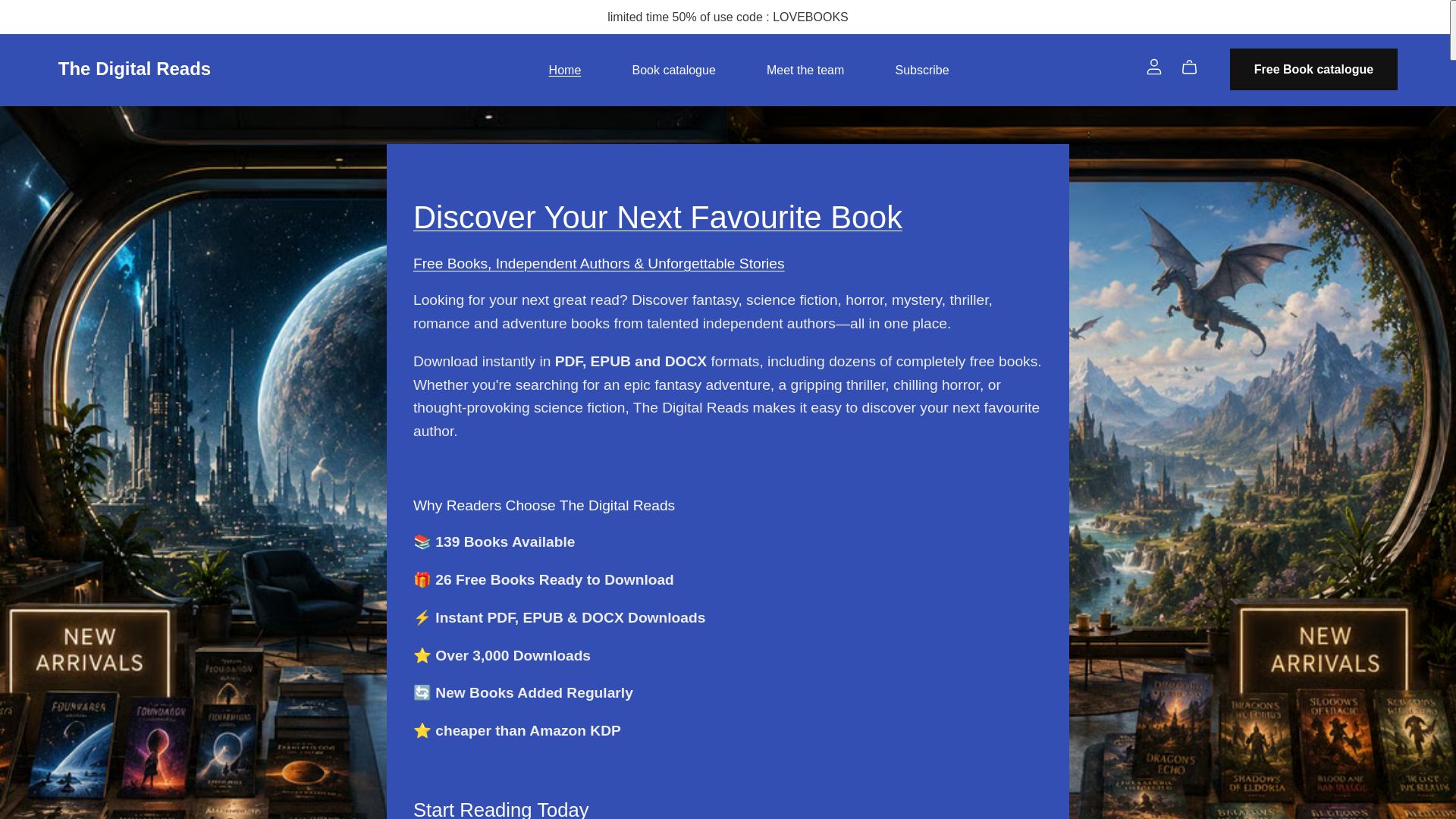
If you've gathered your title, author, and ISBN, you're ready to move. Browse the full collection first to confirm your book isn't already listed under a different edition, then submit your request through whichever route fits your device. Authors ready to publish should start their self-upload or connect through Draft2Digital to get their book purchasable here. Either way, the next step is yours: check the catalog, then request or upload today.
Sources
- How to fill out and submit the Fable Book Request Form — Legal Clarity
- Ebook Landing Page Examples That Convert Readers Into Subscribers and Buyers in 2026
FAQ
How Do I Request a Book on The Digital Reads?
Use the browser import for the fastest results, or fill out the Book Request Form if you're on mobile or the import tool doesn't work.
How Long Does a Book Request Take?
Browser imports with clean data often appear within a day or two, while manually reviewed form submissions typically take longer.
Can I Request an Ebook That's Already in the Catalog but Has Wrong Information?
Yes. That's a metadata correction, not a new book request, and it typically processes faster than adding a brand new title.
What Format Options Does The Digital Reads Support?
The Digital Reads offers instant downloads in PDF, EPUB, and DOCX across genres including science fiction, fantasy, horror, thriller, and romance.
How Do Authors Get Their Book Added Instead of Waiting for Requests?
Authors can self-upload directly to The Digital Reads or distribute through Draft2Digital to make their book purchasable on the marketplace.