
For most readers and authors, EPUB is the format to start with — it's the industry-standard open format that works natively on Kobo, Nook, Apple Books, and dozens of reading apps. Use PDF when your book's layout can't move (textbooks, art books, image-heavy titles). If you're reading on a Kindle, you'll need to convert EPUB via Send to Kindle, since Kindle runs its own proprietary formats.
Quick reference:
- Readers: Download EPUB for most fiction and general reading; grab PDF when the book is visually complex or print-style.
- Authors: Deliver EPUB as your primary file, add a PDF for fixed-layout editions, and let Amazon's conversion pipeline handle Kindle.
- Kindle users: Email your EPUB to your Send to Kindle address or use the Send to Kindle app — Amazon converts it automatically.
One caveat worth keeping in mind: DRM (digital rights management) locks files to specific apps or devices, which can limit conversion options. Accessibility requirements, especially for screen-reader users, also push strongly toward EPUB 3.
Table of Contents
- What is an ebook file format?
- What you need to know about each major ebook format
- How do you pick the right format for your needs?
- How to open, convert, and test your ebook files
- DRM, accessibility, and keeping your files for the long term
- Which devices and apps read which formats?
- Key Takeaways
- The format question most authors get backwards
- Ready-to-download ebooks in EPUB, PDF, and DOCX
- Authoritative sources to consult next
What is an ebook file format?
An ebook file format is a file container that packages text, images, metadata, and layout instructions into a single downloadable file. The format determines how content is structured internally, how it renders on a device, and what features (fonts, multimedia, accessibility tags) are supported.
Two concepts matter most here:
- Reflowable layout: The text wraps to fit any screen size or font setting. EPUB works this way. A sentence that spans a full line on a tablet might split across two lines on a phone — and that's intentional.
- Fixed layout: The page looks exactly the same regardless of screen size, like a PDF. Great for print-ready designs; frustrating on a small e-reader where you end up pinching and zooming.
Common ebook file extensions at a glance:
.epub— EPUB 2 and EPUB 3 (open standard).pdf— Portable Document Format (fixed layout).mobi— Legacy Kindle/MobiPocket format.azw3— Amazon KF8 (modern Kindle).kfx— Amazon's newest Kindle format.cbz/.cbr— Comic book archives (ZIP or RAR).txt— Plain text (no formatting).docx— Microsoft Word (used as a conversion source)
The extension tells you the container type, but not always the full story. Amazon's AZW umbrella, for instance, covers multiple internal formats and DRM variants — so a file labeled .azw might behave very differently from another .azw depending on what's inside.
What you need to know about each major ebook format
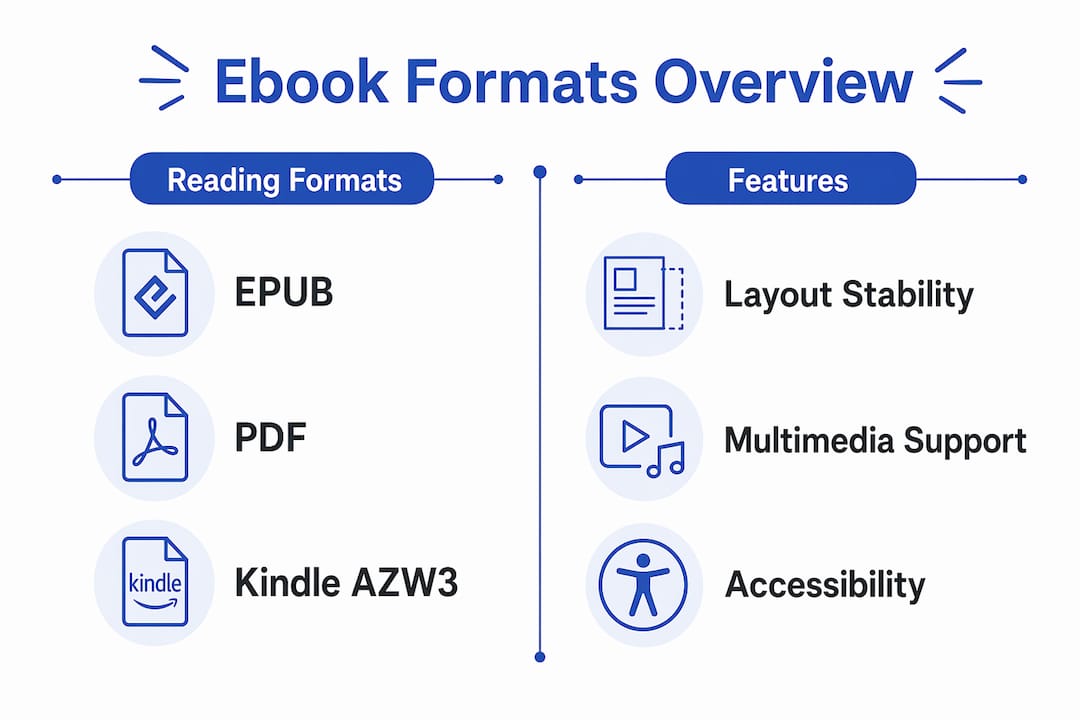
EPUB and EPUB 3
EPUB is the format the publishing industry settled on as its open standard, and for good reason. Under the hood, an EPUB file is a ZIP container holding HTML and CSS files — the same building blocks as a webpage. That structure makes it flexible, accessible, and easy to validate.
EPUB 3, the current version governed by the W3C EPUB specification, adds HTML5 multimedia support, richer semantic markup, and meaningful accessibility improvements over EPUB 2. If you're building an ebook with audio, video, or strong screen-reader support, EPUB 3 is the target.
Pros:
- Reflowable text adapts to any screen or font size
- Natively supported on Nook, Kobo, Apple Books, and most reading apps
- Open standard with active W3C maintenance
- Strong accessibility support (EPUB 3 + DAISY)
Cons:
- Kindle doesn't read EPUB natively — requires conversion
- Complex layouts (multi-column, heavy images) can break during conversion
- Quality depends heavily on the underlying HTML structure
PDF is the format that doesn't move. Every margin, font, and image stays exactly where the designer placed it, which makes it the go-to for academic and scholarly publishing, textbooks, cookbooks, and anything with intricate page design.

The problem on small e-readers is obvious: a page designed for 8.5 × 11 inches looks tiny on a 6-inch Kindle screen. Some apps attempt to reflow PDF text, but the results are often broken — columns merge, captions detach from images, and tables collapse. For fiction or general reading, PDF is the wrong tool.
Pros:
- Perfect layout fidelity across all devices and printers
- Universal support (every device and OS reads PDF)
- Ideal for print-ready files
Cons:
- Poor reflow on small screens
- Not accessible by default (requires tagged PDF for screen readers)
- Large file sizes for image-heavy books
Amazon Kindle formats: AZW3, KFX, and the MOBI legacy
Amazon built its own ecosystem, and it runs deep. Kindle devices use AZW3 (also called KF8) and the newer KFX format natively — neither is an open standard. KFX supports enhanced typography and faster rendering on newer Kindle hardware.

MOBI, the older MobiPocket-derived format, is largely considered legacy at this point. Amazon stopped accepting MOBI uploads from publishers in 2022. If you have old .mobi files, they'll still open on older Kindles, but don't build new projects around the format.
The practical workflow for authors: create a clean EPUB, then let Amazon's KDP or Send to Kindle handle the conversion. You don't need to produce AZW3 or KFX files yourself.
AZW is also worth understanding as an umbrella term. The MobileRead Wiki notes that it covers several Amazon-specific sub-formats including TPZ and AZW4 — so the file extension alone doesn't tell you everything about what you're dealing with.
Pros (AZW3/KFX):
- Optimized for Kindle hardware and Kindle apps
- Supports fixed-layout and enhanced typography
- KFX delivers fast rendering on modern Kindles
Cons:
- Proprietary — locked to Amazon's ecosystem
- Cannot be read natively on Kobo, Nook, or Apple Books
- Conversion from EPUB is required for non-Amazon distribution
Comics and magazines: CBZ and CBR
CBZ (ZIP archive) and CBR (RAR archive) are the standard containers for digital comics and manga. They're essentially folders of sequentially named image files — no text layer, no reflow, just images in order. Dedicated comic readers like Chunky (iOS) or CDisplayEx (Windows) handle them well. Most general e-readers don't support CBZ/CBR natively, so they're a format for enthusiasts with the right app.
Plain text, DOCX, and HTML
These aren't really reading formats — they're source formats. Authors write in .docx or clean HTML, then convert to EPUB or PDF for distribution. Plain .txt files strip all formatting and work as a last resort on any device, but they're not suitable for publishing. DOCX is the most common starting point for indie authors using Calibre or Scrivener to produce their finale book files.
Format comparison at a glance
| Format | Best use case | Layout | Multimedia | Accessibility | Conversion ease |
|---|---|---|---|---|---|
| EPUB 3 | Fiction, general ebooks | Reflowable | Yes (HTML5) | Strong | Easy |
| Textbooks, art books, print | Fixed | Limited | Requires tagging | Difficult to reflow | |
| AZW3/KFX | Kindle distribution | Both | Yes | Moderate | Via Amazon pipeline |
| MOBI | Legacy Kindle (pre-2022) | Reflowable | Limited | Weak | Deprecated |
| CBZ/CBR | Comics, manga | Fixed (images) | No | None | N/A |
| TXT/DOCX | Source/draft files | None/basic | No | None | Source only |
How do you pick the right format for your needs?
The answer depends on three things: where the book will be read, how important the layout is, and how you plan to distribute it.
Ask yourself these questions first:
- What device or app will readers use? (Kindle, Kobo, phone app, browser?)
- Does the book's layout need to stay fixed? (Columns, images, tables?)
- Are you distributing through a store, a library, or direct download?
- Do you need DRM protection, or will you sell DRM-free?
- Do any readers require screen-reader or accessibility support?
For readers — quick pick:
- Download EPUB for any fiction, memoir, or general nonfiction. It adapts to your screen and font preferences.
- Download PDF when the book is a textbook, cookbook, or art book where the visual layout is part of the content.
- On Kindle: use Send to Kindle to convert EPUB, or buy directly from Amazon's store in their native format.
For authors — quick pick:
- Start with a clean DOCX or HTML source file.
- Convert to EPUB as your primary deliverable.
- Add a PDF export for print-ready or fixed-layout editions.
- For Kindle, upload your EPUB to KDP and let Amazon convert it, or use Kindle Previewer to check the output before publishing.
If/then decision tree:
- If your book is fiction or narrative nonfiction → EPUB
- If your book has complex visual design → PDF (plus EPUB if you can manage both)
- If you're publishing to Amazon → upload EPUB, let KDP convert
- If you're distributing to libraries or academic platforms → EPUB 3 with proper metadata
- If you're creating a comic or manga → CBZ for enthusiast readers, fixed-layout EPUB for broader compatibility
Pro Tip: Authors who want to reach readers across all devices should always produce EPUB as the master file and treat PDF and Kindle formats as secondary exports — not the other way around.
How to open, convert, and test your ebook files
Getting a file from DOCX to a clean, validated EPUB takes a few deliberate steps. Rushing it produces broken tables of contents, missing images, and fonts that render differently on every device.
Tools worth knowing:
- Calibre — Free, open-source, and the most capable tool for converting between ebook formats and managing metadata. Handles DOCX → EPUB, EPUB → MOBI, and dozens of other conversions.
- Send to Kindle — Amazon's free service converts EPUB (and other formats) into Kindle-compatible files and delivers them to your device or app. Works via email or the desktop app.
- Kindle Previewer — Amazon's official renderer lets authors see exactly how a book will look on specific Kindle devices before publishing.
- EPUBCheck — The W3C-endorsed validator that checks your EPUB against the spec. Run this before submitting to any store.
- Adobe Digital Editions (ADE) — The standard app for opening DRM-protected library ebooks in EPUB and PDF. Required for many library loan systems.
- Apple Books / Kobo Desktop — Useful for previewing how your EPUB renders in those specific ecosystems.
Step-by-step conversion checklist:
- Clean your source file. Remove manual line breaks, inconsistent heading styles, and embedded images that aren't properly linked. Garbage in, garbage out.
- Export or convert to EPUB. Use Calibre or your writing app's built-in export (Scrivener, Vellum, or Word with a plugin).
- Validate with EPUBCheck. Fix any errors before moving forward — stores like Apple Books and Kobo will reject invalid EPUBs.
- Preview in at least two readers. Open the file in Apple Books and Kobo Desktop (or their mobile equivalents) to catch rendering differences.
- Test on Kindle via Kindle Previewer. Upload your EPUB and check the Kindle rendering — pay attention to the table of contents, chapter breaks, and image sizing.
- Produce a PDF if needed. Export from your source file directly, not from EPUB — converting EPUB to PDF often produces worse results than going back to the original.
- Test on an actual device. Simulators catch most issues, but a real Kindle Paperwhite or Kobo Clara will surface things a desktop preview misses.
Testing checklist before distribution:
- Fonts render correctly and fall back gracefully
- Table of contents links to the right chapters
- Images display at the correct size and don't overflow margins
- Text reflows properly at different font sizes
- Hyperlinks work (especially in nonfiction)
- Metadata (title, author, ISBN) is correct
- DRM is applied correctly if distributing through a store that requires it
Pro Tip: For privacy-focused conversion, look for WebAssembly-based tools that run entirely in your browser without uploading files to a server. Your manuscript stays on your device throughout the process.
DRM, accessibility, and keeping your files for the long term
How DRM affects your ebook
DRM (digital rights management) is encryption layered on top of a file format. A DRM-protected EPUB from a library, for example, can only be opened in an authorized app — usually Adobe Digital Editions — and can't be converted with Calibre or transferred freely between devices.
For readers, DRM means your library is tied to the platform you bought from. For authors, it's a distribution decision: DRM can reduce piracy but also frustrates legitimate readers who switch devices. Many indie authors now distribute DRM-free, especially through direct-download platforms.
Conversion of DRM-protected files is legally restricted in the United States under the DMCA, regardless of whether you own the content. That's a hard boundary worth knowing before you try to strip protection from a purchased file.
Accessibility: why EPUB 3 and DAISY matter
EPUB 3 adds meaningful accessibility support that EPUB 2 and PDF largely lack out of the box. Semantic HTML markup lets screen readers navigate by chapter, heading, and landmark. ARIA roles, alt text for images, and reading-order metadata all contribute to a usable experience for readers with visual impairments.
DAISY (Digital Accessible Information System) is a related standard used heavily in libraries and educational institutions for accessible audio and text ebooks. EPUB 3 was designed to align with DAISY, which is why the two are often mentioned together in library and academic contexts.
Accessibility best practices for authors:
- Use proper heading hierarchy (H1 → H2 → H3) — don't fake headings with bold text
- Add alt text to every image
- Include a logical reading order in the EPUB spine
- Use EPUB 3's
epub:typeattributes for semantic landmarks (chapter, footnote, index) - Validate accessibility with the Ace by DAISY tool after running EPUBCheck
Preservation: keeping your files usable long-term
Formats change. MOBI is already legacy. KFX may not be readable in 20 years. The safest preservation strategy is to keep your master source file (DOCX or clean HTML), an unencrypted EPUB, and an archival PDF — all stored with complete metadata.
Preservation checklist:
- Keep the original source file (DOCX/HTML) alongside your exports
- Store an unencrypted EPUB as your archival copy
- Export a PDF for print-preservation purposes
- Include full metadata: title, author, publisher, ISBN, language, rights statement
- Store files in at least two locations (local + cloud backup)
Which devices and apps read which formats?
The table below shows native support, conversion-required access, and limited or no support for the main formats across major platforms.
| Device / App | EPUB | AZW3 / KFX | MOBI (legacy) | CBZ / CBR | TXT / DOCX | |
|---|---|---|---|---|---|---|
| Kindle (device) | Convert via Send to Kindle | Limited | Native | Native (older devices) | No | Convert |
| Kobo | Native | Native | No | Limited | Via app | No |
| Nook | Native | Native | No | No | No | No |
| Apple Books | Native | Native | No | No | No | No |
| Google Play Books | Native | Native | No | No | No | No |
| Adobe Digital Editions | Native (DRM) | Native (DRM) | No | No | No | No |
| Calibre (desktop) | Native | Native | Convert | Native | No | Convert |
| Moon+ Reader (Android) | Native | Native | No | Native | Native | Native |
Notes by device:
- Kindle: Doesn't read EPUB natively. Use Send to Kindle to convert EPUB files automatically — Amazon handles the rest.
- Kobo: One of the most format-friendly e-readers available. Reads EPUB natively and handles PDF reasonably well for a dedicated e-reader.
- Nook: Barnes & Noble's reader supports EPUB and PDF natively; no Kindle-format support.
- Apple Books: Strong EPUB 3 support, including fixed-layout EPUB for children's books and comics.
- Adobe Digital Editions: Required for most library loan systems that use DRM-protected EPUB or PDF files.
Pro Tip: Always test on the actual device before publishing. A file that looks perfect in Calibre or Kindle Previewer can still have font or TOC issues on a physical Kobo or Kindle Paperwhite.
Key Takeaways
EPUB is the format most readers and authors should start with — it's open, widely supported, and converts cleanly to Kindle formats via Send to Kindle, while PDF remains the right choice when layout fidelity is non-negotiable.
| Point | Details |
|---|---|
| EPUB first | EPUB is the open standard supported natively by Kobo, Nook, Apple Books, and most reading apps. |
| PDF for fixed layout | Use PDF for textbooks, art books, and print-ready titles where exact page design matters. |
| Kindle needs conversion | Kindle doesn't read EPUB natively; use Send to Kindle or KDP to convert before distributing. |
| Validate before publishing | Run EPUBCheck and preview in Kindle Previewer and Apple Books before submitting to any store. |
| Thedigitalreads offers all three | Thedigitalreads provides EPUB, PDF, and DOCX downloads, covering the formats most readers and devices need. |
The format question most authors get backwards
Here's what I keep seeing: authors spend hours agonizing over which Kindle format to produce, when the real decision was made much earlier — at the source file stage. A clean, well-structured EPUB built from properly styled DOCX or HTML will convert to AZW3, KFX, or PDF without drama. A messy source file produces broken outputs in every format, no matter how good the converter is.
The other thing worth saying plainly: MOBI is done. Authors still clinging to it because "it's what Kindle uses" are working from outdated information. Amazon deprecated MOBI uploads in 2022. The modern Kindle pipeline runs on EPUB input and KFX output — your job is to hand Amazon a clean EPUB and let their system do the rest.
PDF gets misused constantly too. Readers who download a PDF of a novel and then complain it's hard to read on their phone aren't wrong — they just grabbed the wrong format. PDF is a print format that happens to display on screens. For reflowable fiction, EPUB wins every time.
The formats that matter for 99% of publishing situations are two: EPUB for reading, PDF for printing or fixed-layout design. Everything else is either a conversion artifact (AZW3, KFX) or a niche use case (CBZ for comics). Build your workflow around those two, validate everything before it ships, and you'll avoid most of the format headaches that plague indie authors.
— richard*
Ready-to-download ebooks in EPUB, PDF, and DOCX
Thedigitalreads is a direct-download marketplace for indie genre fiction — science fiction, fantasy, horror, thriller, and romance — where every title is available as an instant download in EPUB, PDF, or DOCX. No subscription, no waiting, no format guesswork. Browse horror titles, explore the full catalog, or head to the main marketplace to find your next read in the format that works for your device. Formats available per title may vary; check the individual title page for the download options listed. Independent authors can also upload and sell directly through the platform, reaching readers who already know which format they need.
Authoritative sources to consult next
These are the primary references worth bookmarking if you need to go deeper on any format or compatibility question:
- W3C EPUB Overview — The official technical specification for EPUB 3; the definitive reference for anyone building or validating EPUB files.
- Amazon Kindle Publishing Guidelines / Send to Kindle — Amazon's official documentation on accepted formats, conversion behavior, and KDP submission rules.
- Adobe ebook format guide — Clear overview of EPUB and PDF from Adobe, including EPUB 3 accessibility notes.
- Benedictine University Library ebook guide — Practical format-device compatibility charts used by academic libraries; useful for understanding how library loans and DRM interact.
- Boston College LibGuides — ebook formats — Another strong library-sourced compatibility reference covering EPUB, PDF, and Kindle formats.
- MobileRead Wiki — ebook formats — Deep catalog of niche and legacy formats, including the full AZW family; essential for understanding Amazon's format history.
- Calibre project — The home page for the open-source conversion and library management tool; download, documentation, and plugin library all here.
- EPUBCheck — The W3C-endorsed validator for EPUB files; run every EPUB through this before distribution.
- ebook.tools — Practical conversion guidance and browser-based tools, including privacy-focused local converters.