
Prepare your DOCX with consistent heading styles, then run it through WordToEPUB or Calibre. That combination gets most manuscripts into a clean, readable EPUB in under an hour. If you're comfortable with a command line and your book has technical elements like code or footnotes, Pandoc gets you there just as reliably, often with more control over the final file.
TL;DR:
- Properly applying Word's built-in Heading styles and setting images inline prevents most formatting issues during conversion.
- Choosing the right tool depends on your technical comfort: WordToEPUB offers quick, standards-compliant EPUBs, while Calibre provides control and preview features.
- Fix common conversion problems by verifying headings, re-embedding images, simplifying tables, and adding alt text before exporting.
- Testing EPUBs across different readers and devices ensures consistent display and proper functionality before publication.
- For simple text-only books, DIY conversions are reliable; complex layouts or art-heavy titles may require manual editing or professional formatting.
Table of Contents
- Which Tool Should You Use to Convert DOCX to EPUB?
- Exactly What to Change in Word Before You Convert
- How Do You Actually Convert DOCX to EPUB?
- How Do You Fix Common EPUB Conversion Problems?
- How Do You Test an EPUB Before Publishing?
- When Should You DIY a Conversion and When Should You Get Help?
- Want to Skip the Conversion Headache Entirely?
- Sources
- FAQ
Which Tool Should You Use to Convert DOCX to EPUB?
The right tool depends less on your book and more on your comfort level with software. Here's how the main options stack up.
- WordToEPUB — Best for Word users who want standards-compliant output fast. It runs right from the Word ribbon and produces EPUB 3 files with accessibility features built in, which makes it a strong first stop before you touch anything more technical.
- Calibre — Best for readers and authors who want control after the fact. It's free, it handles TOC detection based on your Word heading levels, and it doubles as a viewer so you can check your work immediately.
- Pandoc — Best for technical or academic manuscripts with code blocks, equations, or citations. It's command-line only, but a single line of text can produce a cleaner file than most GUI tools manage.
- Online converters (Draft2Digital and similar services) — Best for speed when your source file is already simple. They're fast, but they usually need a well-cleaned DOCX to avoid formatting surprises.
- Sigil and Vellum — Best for manual polishing once you have a working EPUB. Sigil lets you edit the raw HTML and CSS directly; Vellum focuses on design and layout for a more finished look.
Exactly What to Change in Word Before You Convert
Every conversion problem you'll ever fight traces back to the source file. Fix these seven things in Word first, and most of your headaches disappear before they start.
- Apply Word's built-in Heading styles (Heading 1, Heading 2, etc.) to every chapter title and section break. Manual bold and font-size changes don't carry over to EPUB.
- Set every image to "Inline with Text" in the layout options, not "Wrap Text" or floating positions.
- Resize images to reasonable dimensions. Anything over roughly 1200 pixels on the long side just bloats file size without adding quality.
- Delete headers, footers, page numbers, and manual page breaks. EPUB reflows text, so these page-bound elements just cause clutter.
- Replace tab-based paragraph indents with Word's first-line indent setting under paragraph formatting.
- Simplify complex tables, or convert them into a captioned image if the data doesn't need to be editable.
- Run Word's built-in accessibility checker and fill in the document's title, author, and language fields under File > Info.
Pro Tip: Don't try to fix formatting problems after conversion. Cleaning up the Word file first takes ten extra minutes and saves you hours of hunting through raw HTML later.
How Do You Actually Convert DOCX to EPUB?
Once your file is clean, pick the workflow that matches your comfort level and book type.
WordToEPUB: Install the add-in from the DAISY Consortium, and it appears as a new tab in the Word ribbon. Choose "Simple" for a quick pass with default settings, or "Advanced" to set metadata, cover images, and accessibility options before you export. It also runs standalone or as a right-click option in Windows Explorer if you'd rather skip opening Word entirely.
Calibre: Click "Add Book," select your DOCX, then click "Convert Books" and choose EPUB as the output format. Under "Look & Feel," you can adjust font handling and margins. Under "Table of Contents," set which heading levels should generate TOC entries, since Calibre reads this directly from your Word styles.
Pandoc: Open a terminal and run a command like pandoc manuscript.docx -o book.epub --toc --epub-cover-image=cover.jpg. Add --metadata title="Your Title" and --metadata author="Your Name" to set the details Pandoc doesn't pull automatically. This route works especially well for manuscripts with code or footnotes.
Online converters: Upload your DOCX to a service like Draft2Digital, and you'll usually have an EPUB back in a minute or two. This is the least hands-on option, but it works best when your source file is already simple and well-formatted.
Word to HTML to Sigil: Export your DOCX as "Filtered Web Page" HTML from Word, then open it in a text editor and strip out the Word-specific CSS classes it generates. Import the cleaned HTML into Sigil, then build your manifest and write custom CSS for full control over the final look.
How Do You Fix Common EPUB Conversion Problems?
Even a well-prepared file can produce a few rough edges. Here's how to diagnose and fix the ones that show up most often.
- Chapters merged into one block: Re-check that every chapter title actually uses a Heading style, not just bold text, then force TOC detection at that heading level in Calibre or Sigil.
- Missing or broken images: Confirm images were inline (not floating) before conversion, and re-embed any that came through as broken links.
- Stray Word markup cluttering the HTML: Use Calibre's search-and-replace tool, or open the file in Sigil and strip leftover
<span>tags and inline styles by hand. - Tables that break on smaller screens: Simplify the table structure, or replace it entirely with a captioned image if the data isn't meant to be interactive.
- Accessibility gaps: Add alt text to every image, confirm the language tag is set correctly, and test the file in a screen reader before calling it finished.
Pro Tip: If you spot the same error on three or more pages, go fix it in the original DOCX and reconvert. Patching the same mistake repeatedly in raw HTML wastes more time than a five-minute reconversion.
How Do You Test an EPUB Before Publishing?
A file that looks fine in one app can fall apart in another, so testing across platforms matters more than most authors expect.
- Open the EPUB in at least two different readers, such as Thorium and Apple Books, plus the Calibre viewer for a quick internal check.
- Verify the table of contents links to the right chapters, and confirm text reflows cleanly at three or four different font sizes.
- Check that the cover image displays correctly and that title, author, and language metadata all show up as expected.
- If you're publishing through a retailer like Draft2Digital or KDP, review their specific upload requirements, since Kindle formats sometimes need an extra conversion step through Calibre.
- Load the finished file onto an actual device if you can, since on-screen emulators don't always match real reading behavior.
When Should You DIY a Conversion and When Should You Get Help?
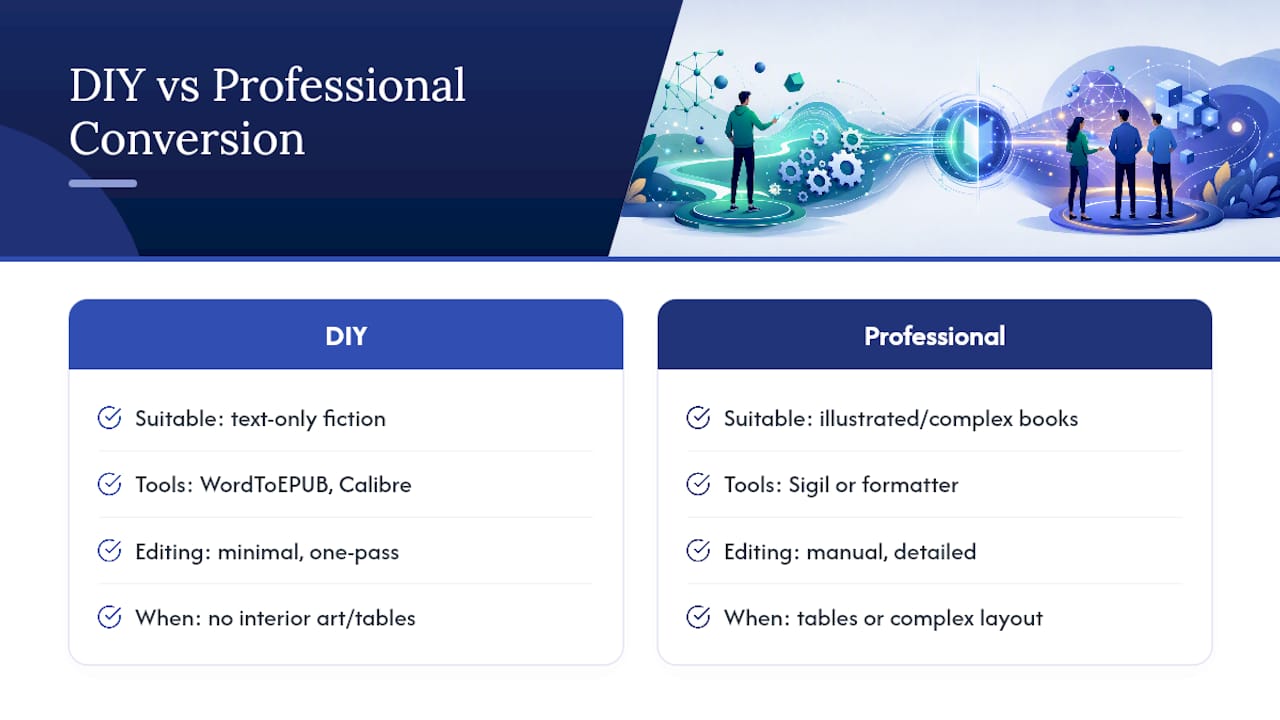
Straightforward, text-only novels almost always convert cleanly with WordToEPUB or Calibre in one pass. I'd trust either tool for a mystery, a romance, or a thriller with no interior art. Illustrated books, cookbooks, or anything with tables and complex layout are a different story. That's where manual editing in Sigil, or a professional formatter, earns its cost.
At Thedigitalreads, we see the downstream effect of sloppy conversions constantly. A messy EPUB with a broken TOC or oversized images creates a bad reading experience the moment someone downloads it, and that reflects on the author, not the tool they used.
Save this as your working checklist: styles applied, images inline and resized, tables simplified, metadata filled in, tested on two readers minimum. Reuse it on every project.
— richard
Want to Skip the Conversion Headache Entirely?
If self-converting sounds like more technical work than you want to take on for every release, explore the top AI writing tools that can help automate and simplify content creation, making the process smoother. Authors upload EPUB, DOCX, or PDF versions directly, and readers browse a catalog spanning science fiction, fantasy, horror, thriller, and romance without you needing to manage every conversion step yourself.
Unlike a solo self-publishing workflow where you're the only line of quality control, listing on The Digital Reads puts your book in front of readers actively looking for indie voices, with free and paid listing options depending on your goals. You still control your files and pricing, but you're not the only safety net if formatting slips through. If you'd rather spend your time writing the next book than debugging a broken table of contents, visit The Digital Reads and set up your author listing today.
Sources
- WordToEPUB — DAISY Consortium
- Calibre and EPUB conversion overview
- How to Quickly Create an EPUB File From Word | Jane Friedman
FAQ
What Is the Fastest Way to Convert DOCX to EPUB?
For most Word users, installing WordToEPUB and running the simple conversion mode from the Word ribbon is the fastest reliable path, typically finished in minutes once your document uses proper heading styles.
Why Does My Converted EPUB Have Merged Chapters?
This almost always means your chapter titles weren't tagged with a Heading style in Word. Reapply Heading 1 to each chapter title and reconvert rather than trying to fix the merged sections after the fact.
Can I Convert DOCX to EPUB for Free?
Yes. WordToEPUB, Calibre, and Pandoc are all free, and each handles standard manuscripts well once the source DOCX is cleaned up beforehand.
Do I Need Calibre if I Already Used WordToEPUB?
Not necessarily, but Calibre is worth keeping around anyway since it also works as a free EPUB viewer for testing your finished file across different settings.
Where Can I List My EPUB Once It's Converted?
Independent marketplaces like The Digital Reads accept EPUB, DOCX, and PDF uploads directly, which spares you from managing separate retailer-specific conversion steps for every platform.